

Safe YouTube for kids
Your child's own cozy corner of YouTube
You decide which topics and channels your child can watch, and for how long. Twinklenook shows only those videos, and you can check what's playing from your own phone.
- Official YouTube player
- No YouTube sign-in for kids
- Free to use


How it looks for your child and for you
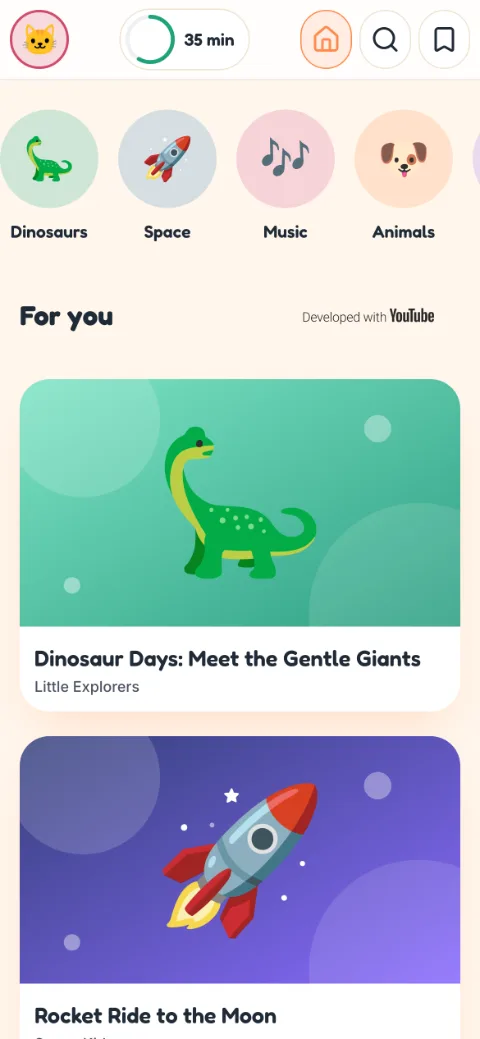
Your child sees large video cards from the topics you switched on. You see which child is watching what and how many minutes each one has left today.
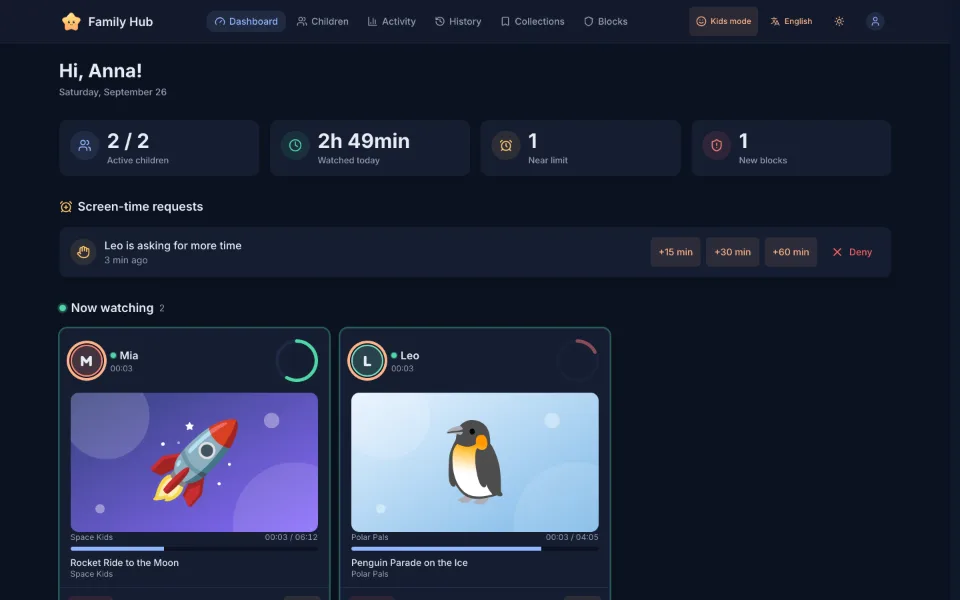
Family Hub. Who is watching right now, how much time is left, and requests for more time, which you answer with one tap.
Your child's corner. Large video cards from the topics you switched on, and no comments under the videos.
Screenshots show sample content.
What Twinklenook can do
You set things up once. After that your child browses on their own, and you step in when you need to.
Screen-time limits
Set a daily limit and the days and hours when watching is allowed. Add extra minutes from your phone if you want to.
Now watching
See what each child is watching at the moment, and block a video with one tap if it isn't right.
Blocks that stick
Block a single video, a whole channel or a word. The block applies everywhere: the home feed, search and recommendations.
Automatic filters
They help catch unsuitable videos and low-effort AI-generated content before your child sees them.
Your own collections
Put videos you like into collections, and your child will find them in their app.
Age, language and topics
Choose an age rating, the language of videos and the topics: science, music, animals, space and others.
Ready in three steps
Setup takes a couple of minutes.

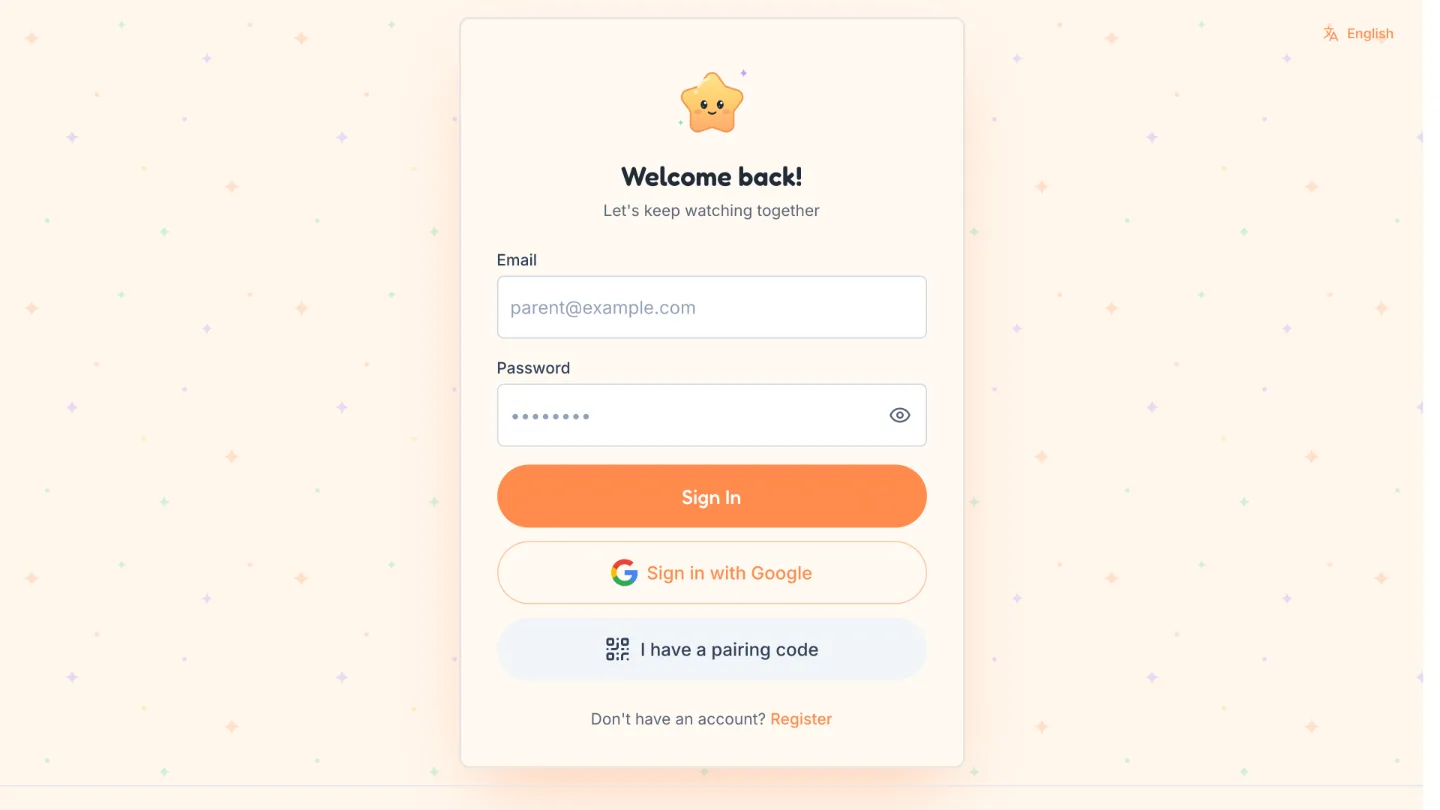
Create your account
Sign up with your email or your Google account.
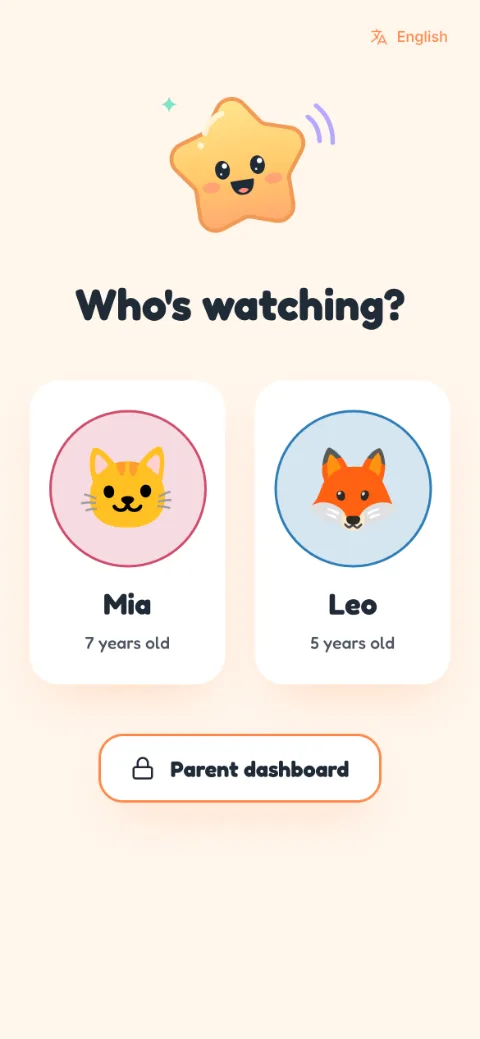
Add your children
Make a profile for each child with their age, language and favorite topics.
Hand over the device
Open Twinklenook on your child's phone, tablet or computer, or link it with a pairing code.

Safety you can check yourself
We show step by step how a video gets to your child's screen. Most of those steps are settings you control.
The official YouTube player. Every video plays in YouTube's own embedded player. We never download, copy or change videos.
Several filters in a row. Before a video is shown, we check its age rating, language and topic, your blocks and our automatic filters.
Children's privacy. Children can't message anyone, post anything or type in personal details.
Questions parents ask
Is Twinklenook free?
Yes, Twinklenook is free right now. If we ever add paid features, we will tell you in advance, and whether to use them will be up to you.
Does my child need a YouTube or Google account?
No. Your child never signs in to YouTube. You create one parent account with your email or Google, and add a profile for each child inside it.
How do you decide which videos my child sees?
We combine the age rating, language and topics you choose with your blocks and our automatic filters. No filter is perfect, so you also get a watch history and one-tap blocking.


Set up your child's corner
Sign-up is free, and the first profile takes a couple of minutes.